If you are searching for how to insert a signature into word, you are likely staring at a contract that needs a wet signature while your printer is flashing an error message.
The year is 2026. Why do we still need to print a document just to sign it?
While the world is moving toward digital e-signing, sometimes you just need to get your handwritten scribble onto a Word doc. Whether it’s for a client contract or an internal HR form, here is the complete guide to doing it without using a scanner.
How to Insert a Signature into Word: 3 Step-by-Step Methods
Method 1: Photo & Crop (Best for Realism)
This is the most common method. You write your name on paper, take a picture, and stick it in the document.
-
Sign & Snap: Sign your name on a clean piece of white paper. Take a photo with your phone (try to avoid shadows).
-
Insert: Send the photo to your computer. In Word, go to Insert > Pictures and select your file.
-
Clean Up: The image is likely too big and gray. Click the image, go to the Format tab, and use the Crop tool to cut out the empty white space.
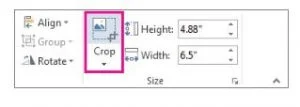
(Tip: You can also use the Corrections button in Word to increase contrast and make the paper look bright white.)
Method 2: The Signature Line Feature (Best for Formal Contracts)
If you need a formal placeholder for someone else to sign (or for a digital ID), use Word’s built-in feature.
-
Click where you want the line.
-
Go to Insert > Signature Line.
-
In the setup box, type the signer’s name and job title.

Method 3: Save as AutoText (Best for Repeat Use)
Do you find yourself inserting the same signature image every week? Stop doing it manually. You can save your signature and job title as a permanent building block in Word.
-
Insert your signature image and type your job title/address underneath it.
-
Highlight both the image and the text.
-
Go to Insert > Quick Parts > Save Selection to Quick Part Gallery.
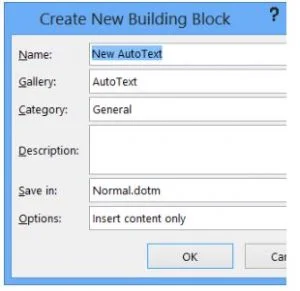
Now, whenever you need to sign, just click Quick Parts, and your full signature block will drop in instantly.
Security Problems: Why You Shouldn’t Insert a Signature into Word
Learning how to insert signature into word is a useful hack for a one-off letter, but it is dangerous for business contracts.
Here is why inserting JPEGs into Word is holding your business back:
-
Zero Legal Security: An image of a signature is just that, an image. It has no digital fingerprint, no timestamp, and no audit trail. Anyone with access to the document can copy-paste your signature onto another document without your knowledge.
-
Formatting Nightmares: We have all been there, you paste the image, and suddenly the text jumps to the next page, or the signature floats over a paragraph.
-
The Mobile Fail: If your client opens that Word doc on their phone, the formatting will likely break, and they won’t be able to sign it anyway.
The Professional Solution: Doc2
Stop fighting with wrap text settings and start e-signing.
Doc2 isn’t just a way to add a signature; it’s a way to close deals faster.
-
Legally Binding: Every document signed through Doc2 comes with a full audit trail. It stands up in court.
-
Sign Anywhere: Your clients don’t need to print anything. They can sign your contract on their iPhone using their finger, and it looks perfect every time.
-
Speed: Drag and drop your Word doc into Doc2, place the signature box, and send. What used to take 15 minutes of formatting now takes 30 seconds.
Every time you ask a client to print, sign, and scan, you are giving them a reason to delay the deal. Stop killing your own momentum with outdated admin. Switch to 21st-century signing with Doc2.

Updated January 2026